
Cricket 99 Login
Cricket 99 login needs three things, and the desk that gave you the ID sends all of them: the current panel address, your User Name and your Password.
The current login address for your ID comes from the desk that issued it, and the desk answers 24×7.
Ask for your login link on WhatsAppCricket99 login steps on mobile
These steps follow the panel login screen checked on 22 September 2026; screens can differ by address, so follow the address the desk sends. Keep the WhatsApp chat open in a second tab, since the address and the password both come from it.
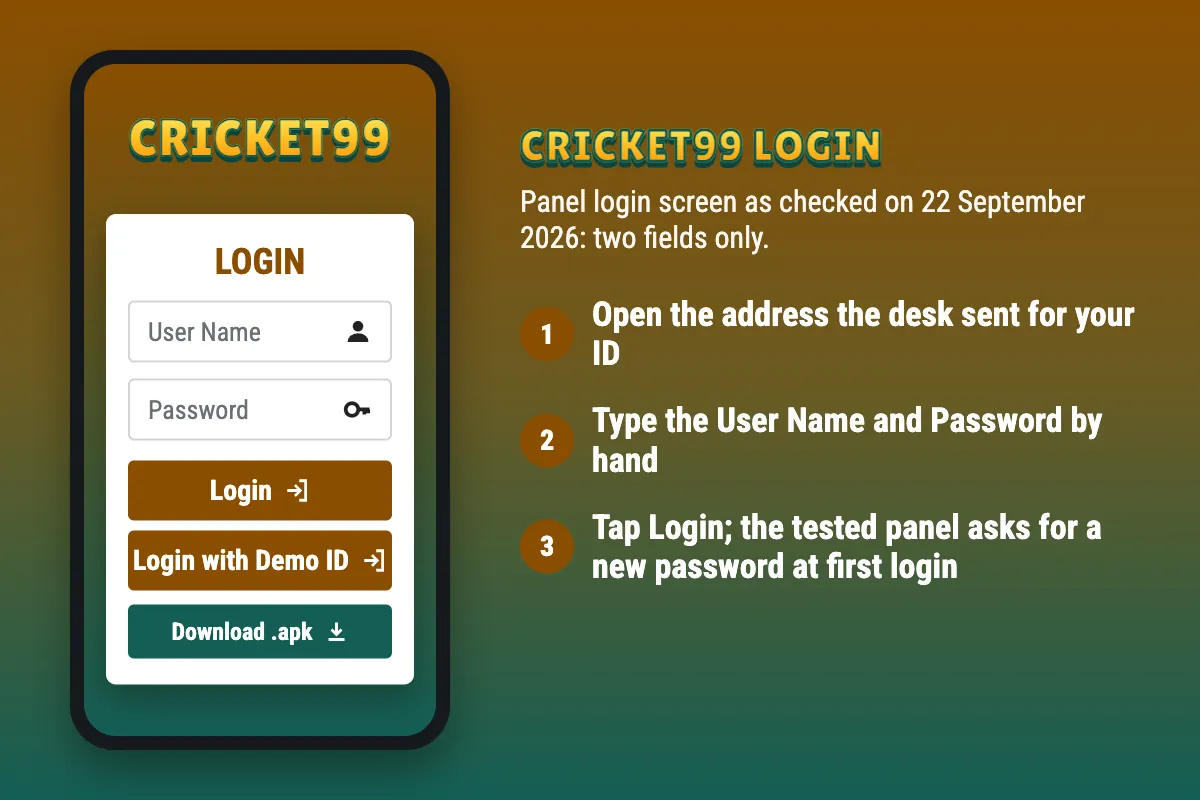
- Open the panel address sent in your WhatsApp chat, and check it letter by letter against the message.
- Type the User Name exactly as issued; some addresses label the field User Name / Mobile Number.
- Type the Password by hand, because autofill often inserts an old password or a trailing space.
- Tap Login and wait for the page to load before tapping again.
- On a first login, set the new password the panel asks for.
No ID yet? A new ID comes from the desk after a KYC check; the Cricket99 ID page has the steps. The Login with Demo ID button on the tested screen opens a demo with play money, which cannot be withdrawn.
Cricket99 first login password change
The panel’s public code opens a Change Password screen at the first login, with Current Password, New Password and Confirm New Password, and the new password must be at least six characters. Some IDs are also asked to set a new username.
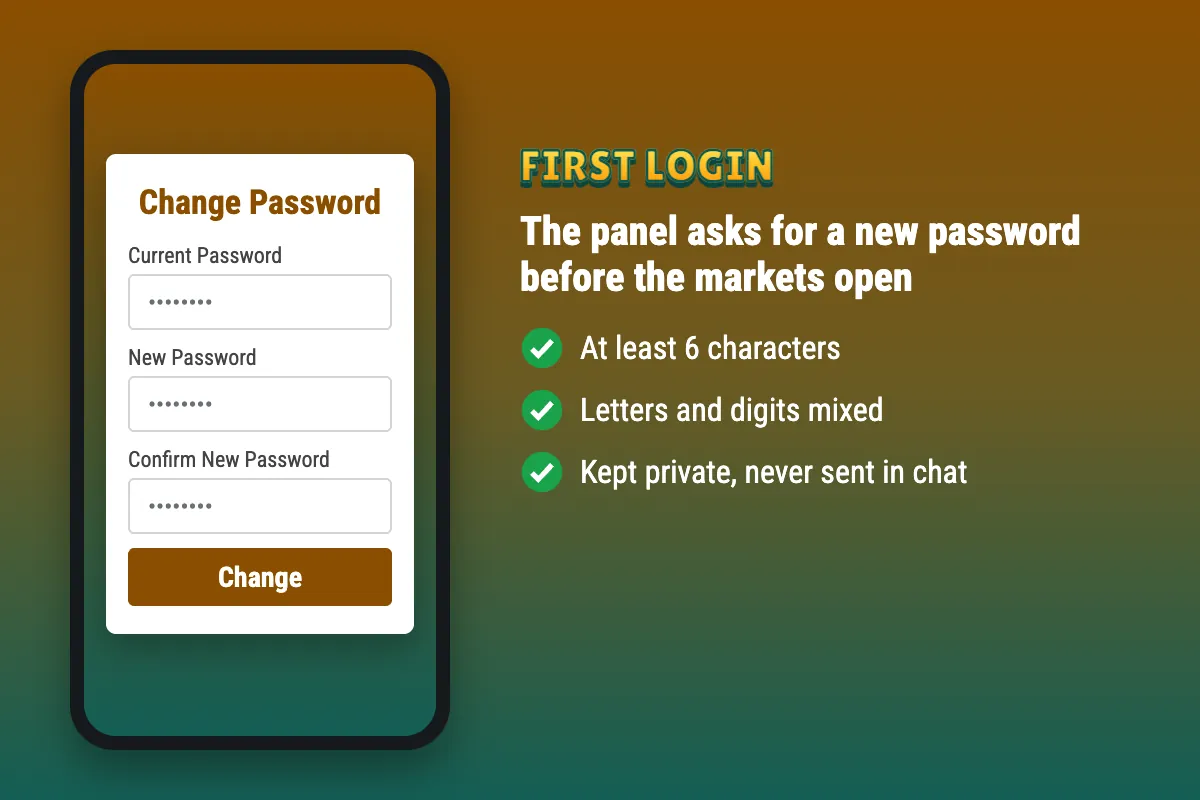
- Enter the password from the chat as the Current Password.
- Choose a new password of six characters or more, mixing letters and digits, used nowhere else.
- Type it again in Confirm New Password and save.
- Log in again with the new password, and keep it out of every chat.
Check your Cricket99 login the evening before a match
India play in New Zealand from 22 October to 1 December (schedule as of 14 October 2026). New Zealand is hours ahead, so start times fall early in the Indian day. A login problem found at the first ball costs you the start, so run this check the evening before:
- Open the address from the desk’s latest message and make sure it still loads.
- Log in once, and finish the first-login password change if the panel asks for it.
- Save that working address as a bookmark or home screen shortcut, and delete the older ones.
- If anything fails, message the desk that night rather than minutes before play.
Cricket99.com login and the current address
Typing cricket99.com or www.cricket99.com from memory is how many users land on the wrong page. The panel runs on addresses that change over a season, and a retired address fails to load or opens a page that only imitates the login screen.
Use the latest address from the desk that issued your ID and confirm the domain matches exactly; one altered character points to a cloned site. Address names such as Cricket 99 Club and Green follow the same rule.
Forgot the Cricket99 password or username
The login ID is the User Name the desk issued, and it sits in the WhatsApp chat where the ID arrived; search that chat before asking again. On addresses that show User Name / Mobile Number, the desk can confirm whether your mobile number works in that field.
For a forgotten password, message the desk that issued the ID. It confirms the account and explains the reset for that address; you never need to send an OTP or your new password in the chat.
When the Cricket 99 login fails
Login failures fall into a few patterns.
- Wrong username or password. Caps lock, a space from copy and paste, or autofill supplying an older password are the usual causes; type both values by hand.
- Password changed, login still fails. The browser may still be filling in the old password; clear the saved password and type the new one.
- Page does not load or stays blank. The address may be retired or blocked on that network; ask the desk for the current address, and switch between Wi-Fi and mobile data to test for a block.
- Login button does nothing. Wait for the page to finish loading, try another browser, and ask the desk whether the address is current.
- Account on hold after wrong attempts. Stop trying and ask the desk; how long a hold lasts is not something this site can confirm.
- Logged out again and again. A login on a second device can end the first session; use one device and ask the desk if it continues.
- Works in the browser, not in the app. The app may hold an old address; see Cricket99 app not working.
- A login page asks for an OTP, card number or UPI PIN. The tested login screen asked only for a User Name and Password; close such a page without typing anything.
When you message the desk, send your User Name, the address you tried and a screenshot of the error. Never send your password or an OTP; the desk does not need either to check an ID.
Send the error to the desk on WhatsApp